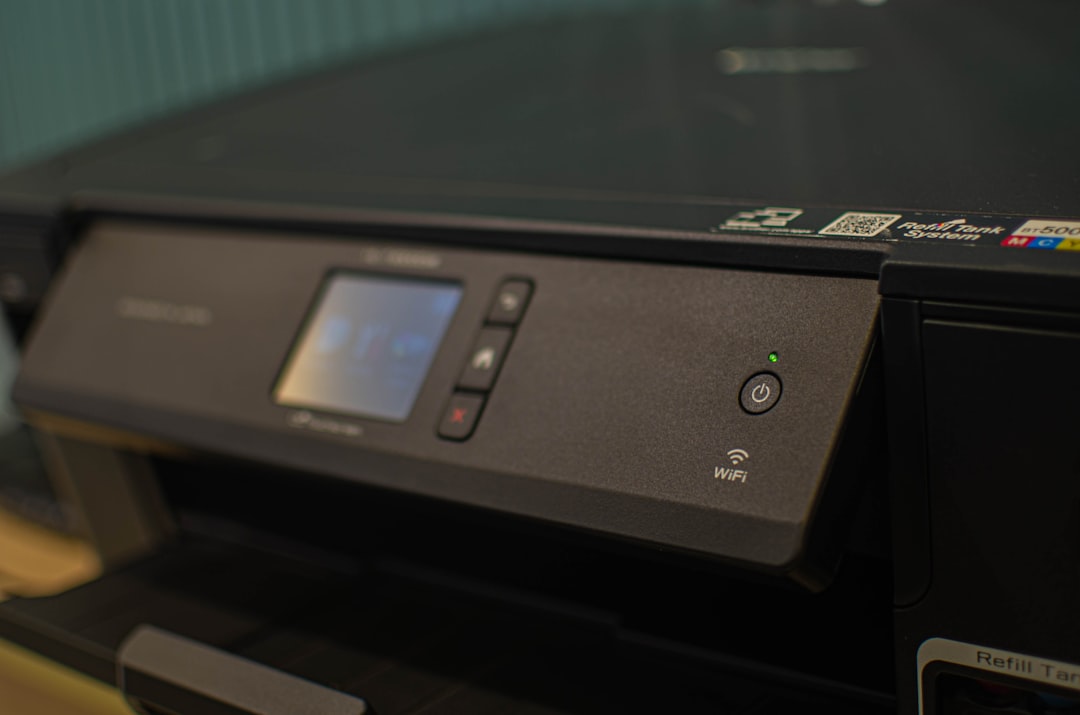
You’ve likely experienced the silent, creeping dread. Your printer, a loyal workhorse, suddenly refuses to print. The cursor spins, offering no solace, and the print queue remains stubbornly empty. Often, the culprit isn’t a lack of ink or a paper jam, but an automated update that has, in its well-intentioned zeal, rendered your device incompatible with its current software. This guide is here to equip you with the knowledge to reclaim control over your printing destiny by disabling automatic printer updates.
Automatic updates, in theory, are designed to enhance your user experience. They are meant to be the benevolent guardian of your software, diligently patching security vulnerabilities, introducing new features, and ensuring smooth operation. For many devices, this hands-off approach is a convenient solution, freeing you from the tedium of manual maintenance. However, for printers, this automated process can sometimes be more of a rogue wave than a helpful current, disrupting established workflows and creating unforeseen roadblocks.
The Intended Benefits of Printer Updates
It’s important to acknowledge why these updates exist in the first place. Manufacturers invest significant resources in developing software that refines printer performance.
Security Patches and Vulnerability Mitigation
Just like any connected device, your printer can be a target for malicious actors. Updates frequently address security flaws that could otherwise be exploited, protecting your network and sensitive documents.
Performance Enhancements and Bug Fixes
Manufacturers constantly strive to improve the efficiency and reliability of their printers. Updates can introduce optimizations for faster printing, better color accuracy, and more robust paper handling. They also address minor glitches that might otherwise cause printing errors or inconsistencies.
New Feature Integration
Occasionally, updates are rolled out to introduce new functionalities to your printer. This might include enhanced mobile printing capabilities, new scanning options, or improved integration with cloud services.
The Pitfalls of Uncontrolled Updates
While the aims are commendable, the execution of automatic updates can sometimes lead to unintended consequences. When these updates are applied without your direct oversight, they can become an invisible saboteur of your printing operations.
Incompatibility Issues and Driver Conflicts
The most common problem arises when an automatic update introduces a new driver or modifies existing ones in a way that conflicts with your operating system or other installed software. This can leave your printer in a state of digital paralysis. Imagine a vital cog in a well-oiled machine suddenly changing its shape; the entire mechanism grinds to a halt.
Unexpected Changes to Functionality
Sometimes, an update might alter the way your printer operates. Features you relied upon may be tweaked or even removed, forcing you to adapt to a new, and perhaps less efficient, way of working. This is akin to a familiar tool in your workshop being subtly reshaped, making its long-practiced use awkward and unfamiliar.
Wasted Time and Productivity Loss
When an automatic update causes your printer to malfunction, the ensuing troubleshooting can be a significant drain on your time and productivity. You might find yourself spending hours diagnosing the problem, searching for solutions online, or contacting customer support, all of which detracts from your core tasks.
Undesired Software Installations and Bloatware
Some printer updates may bundle additional software or utilities that you do not need or want. This can clutter your system, consume valuable storage space, and potentially introduce further performance issues.
If you’re looking for guidance on how to disable automatic printer updates, you might find it helpful to check out a related article that delves into printer settings and management. This resource provides step-by-step instructions and tips to ensure that your printer operates according to your preferences. For more information, visit this article to learn more about managing your printer settings effectively.
Disabling Automatic Updates in Windows
The process for disabling automatic printer updates varies slightly depending on your operating system. This section will focus on Windows, the most common desktop operating system for personal and professional use.
Method 1: Through Windows Update Settings
Windows Update is the central hub for managing system-wide updates, and it also plays a role in how device-specific updates are handled.
Accessing Windows Update Settings
- Navigate to Settings by clicking the Start button and selecting the gear icon.
- Click on Update & Security.
- Select Windows Update from the left-hand menu.
Modifying Update Deferral Options
While Windows primarily focuses on operating system updates, there are options related to how device driver updates are managed.
- Within the Windows Update screen, click on Advanced options.
- Look for options related to receiving updates for other Microsoft products or driver updates. Often, you will find a toggle switch or a checkbox that allows you to defer or pause updates.
Understanding the “Pause Updates” Feature
The “Pause updates” feature allows you to temporarily stop all Windows updates, including those that might affect your printer drivers. This is a useful short-term solution if you suspect an update has caused an issue.
- In the Advanced options menu, you will see a “Pause updates” section.
- Click the dropdown menu to select a date up to which you wish to pause updates. This can be beneficial if you’re in the middle of a critical project and don’t want any disruptions.
The Granularity of Driver Updates
It’s important to note that Windows Update often bundles driver updates with operating system updates. While you can pause all updates, specific control over individual printer driver updates through this primary Windows Update interface is limited. For more granular control, you’ll need to delve into Device Manager.
Method 2: Using Device Manager
Device Manager is the primary tool for managing hardware components and their associated drivers in Windows. This is where you can exert more direct control over your printer’s driver updates.
Locating Device Manager
- Right-click on the Start button.
- Select Device Manager from the context menu.
- Alternatively, you can search for “Device Manager” in the Windows search bar.
Identifying Your Printer in Device Manager
- Once Device Manager is open, expand the Printers category.
- Locate your specific printer model within the list. If it’s not immediately obvious, it might be listed under Print queues or as an Unknown device if the driver is not recognized.
Preventing Automatic Driver Updates for Your Printer
This is the core of disabling automatic updates for your specific printer.
- Right-click on your printer’s name in Device Manager.
- Select Properties.
- Navigate to the Driver tab.
- Click on the Driver Details button. Here you can see the path and version of the currently installed driver.
- Crucially, you will find a button labeled Disable Device. Do NOT click this, as it will render your printer unusable.
- Instead, look for an option related to driver updates. In older versions of Windows, there might be a direct option to prevent driver updates. In newer versions, you will usually find a setting that prevents Windows Update from automatically updating drivers for this device. This often involves a checkbox labeled something like “Allow Windows to download drivers for devices.” Uncheck this box for your printer.
Rolling Back a Problematic Driver
If an automatic update has already caused issues, Device Manager also allows you to revert to a previous, stable driver.
- Follow the steps above to access your printer’s Properties and the Driver tab.
- If a previous driver is available, you will see a Roll Back Driver button that is not grayed out. Click this button to revert to the prior version.
Uninstalling and Reinstalling Drivers Manually
In some cases, the most effective solution is to completely remove the problematic driver and install a fresh, known-good version.
- In Device Manager, right-click on your printer and select Uninstall device.
- Crucially, tick the box that says “Delete the driver software for this device” if it appears. This ensures that the problematic driver files are removed.
- Restart your computer.
- Download the latest stable driver directly from your printer manufacturer’s official website. Avoid using generic drivers from unknown sources.
- Run the downloaded driver installer and follow the on-screen instructions.
Disabling Automatic Updates in macOS
macOS has its own mechanisms for managing system and software updates. While less prone to the same level of driver-related disruption as Windows, it’s still wise to be aware of how updates are handled.
Accessing Software Update Preferences
- Click on the Apple menu in the top-left corner of your screen.
- Select System Settings (or System Preferences on older macOS versions).
- Click on General in the sidebar.
- Click on Software Update.
Configuring Automatic Updates
Within the Software Update pane, you have control over what is updated automatically.
Examining the “Automatic updates” Toggle
- You will see a main “Automatic updates” toggle. Disabling this will stop all automatic macOS updates. However, this is generally not recommended as it leaves your system vulnerable.
- Instead, look for more granular options. Click the “i” icon next to “Automatic updates” or similar wording depending on your macOS version.
- Here, you can deselect specific types of updates. Ensure that “Install application updates from the App Store,” “Download new updates when available,” and especially “Install macOS updates” are unchecked if you want to prevent automatic system-level changes that could affect printer drivers.
Printer Driver Updates in macOS
macOS typically handles printer drivers through its built-in software update mechanism. When a new printer driver is available, it’s usually bundled with a macOS update. Therefore, by controlling macOS updates, you are indirectly controlling printer driver updates.
Manual Driver Installation for macOS
If you encounter issues, the advised approach is to:
- Go to your printer manufacturer’s website and download the latest macOS driver for your specific printer model.
- Open the downloaded
.dmgor.pkgfile and follow the installation instructions. - You may need to remove the existing printer entry in System Settings > Printers & Scanners before adding it again with the new driver.
Disabling Automatic Updates on Specific Printer Models
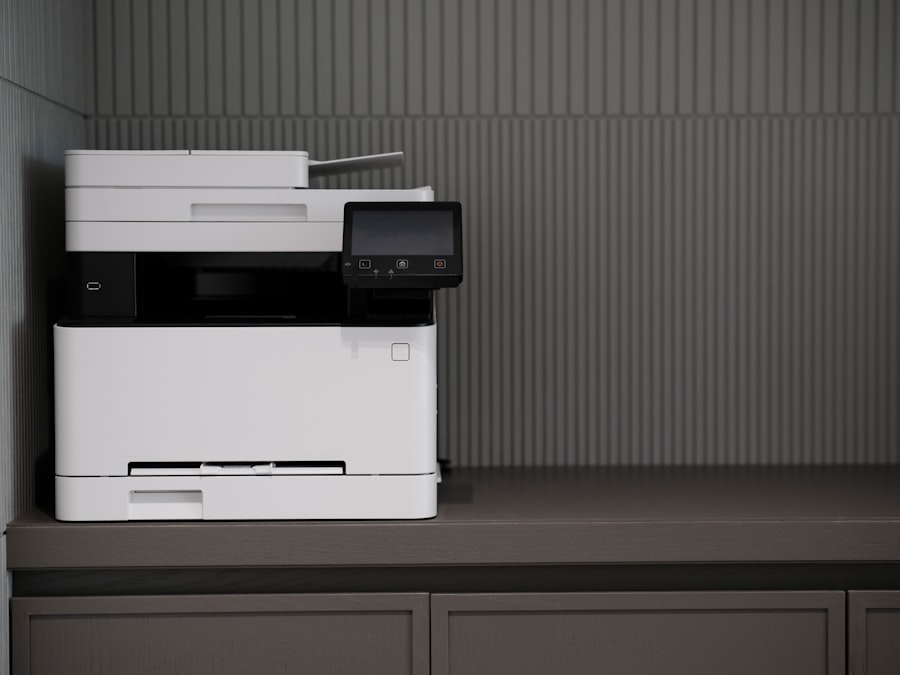
Some modern printers, particularly those with integrated touchscreens and network connectivity, manage their own firmware updates independently of your computer’s operating system. This is like your printer having its own tiny brain that decides when it needs a tune-up.
Accessing Printer Settings via its Control Panel
- Locate the printer’s onboard display or touchscreen. This is your direct interface with the printer’s internal software.
- Navigate through the menus. Look for sections labeled “Settings,” “Setup,” “Maintenance,” “Network,” or “System.”
- Find the update settings. Within these menus, you should find an option related to “Firmware Update,” “Software Update,” or “Automatic Updates.”
Configuring Firmware Update Options
- Look for a toggle or option to disable automatic firmware updates. This might be a simple on/off switch or a selection between “Automatic” and “Manual.”
- Select “Manual” or “Off” to prevent the printer from updating its firmware without your explicit consent.
- Keep an eye out for notifications. Even with automatic updates disabled, your printer may still notify you when a new firmware version is available. This allows you to download and install it on your schedule.
Understanding Firmware vs. Driver Updates
It’s crucial to distinguish between printer firmware and computer driver updates.
- Firmware: This is the low-level software embedded directly into the printer’s hardware. It controls the fundamental operations of the printer.
- Driver: This is the software that resides on your computer and acts as a translator between your operating system and the printer.
Disabling automatic firmware updates on the printer affects its internal workings. Disabling automatic driver updates on your computer affects how your computer communicates with the printer. Both can be important for maintaining control.
If you’re looking to manage your printer settings more effectively, you might find it helpful to read an article on how to disable automatic printer updates. This can prevent unexpected changes to your printer’s functionality and ensure a smoother printing experience. For more details, check out this informative piece here.
The Art of Manual Driver Management
| Method | Steps | Effectiveness | Notes |
|---|---|---|---|
| Disable Windows Update for Printer Drivers |
1. Open Group Policy Editor (gpedit.msc) 2. Navigate to Computer Configuration > Administrative Templates > System > Device Installation > Device Installation Restrictions 3. Enable “Prevent installation of devices that match any of these device IDs” 4. Add printer device IDs to block updates 5. Apply and restart |
High | Requires Windows Pro or Enterprise editions |
| Turn Off Automatic Driver Updates via System Settings |
1. Open Control Panel 2. Go to System > Advanced system settings 3. Click on Hardware tab > Device Installation Settings 4. Select “No (your device might not work as expected)” 5. Save changes |
Medium | May affect other device driver updates |
| Use Registry Editor to Disable Printer Driver Updates |
1. Open Registry Editor (regedit) 2. Navigate to HKEY_LOCAL_MACHINE\SOFTWARE\Policies\Microsoft\Windows\WindowsUpdate 3. Create or modify DWORD “ExcludeWUDriversInQualityUpdate” and set value to 1 4. Restart computer |
High | Backup registry before changes |
| Disable Windows Update Service |
1. Open Services (services.msc) 2. Find “Windows Update” service 3. Right-click > Properties 4. Set Startup type to Disabled 5. Stop the service |
Very High | Disables all Windows updates, not recommended |
| Use Third-Party Tools |
1. Download and install update management software 2. Configure to block printer driver updates 3. Monitor update activity |
Variable | Depends on tool capabilities and trustworthiness |
Once you’ve disabled automatic updates, you’ve stepped out of the passenger seat and into the driver’s seat of your printer’s software. This shift, while empowering, requires a proactive approach to maintenance.
When to Check for Updates Manually
Just because you’re not being forcefully updated doesn’t mean you should ignore updates entirely. The absence of automatic updates necessitates strategic manual checks.
After Major Operating System Upgrades
A significant upgrade to Windows or macOS can sometimes introduce compatibility issues with existing printer drivers. It’s wise to visit your printer manufacturer’s website after such an event.
When Experiencing New Printing Problems
If you start encountering unusual printing errors, slow performance, or unexpected behavior, a pending driver update might be the solution.
Before or After Purchasing New Software or Hardware
Introducing new applications or hardware to your system can sometimes create conflicts. Ensuring your printer drivers are up-to-date can preempt such issues.
Periodically (e.g., Quarterly or Bi-Annually)
Set a recurring reminder in your calendar to visit your printer manufacturer’s support page. This ensures you’re not missing out on critical stability improvements or security patches.
The Process of Manual Driver Installation
Manual driver installation is a straightforward process, but it requires careful attention to detail.
- Identify your printer model precisely. This includes the exact model number and any sub-variants.
- Visit the official support website of your printer manufacturer. Look for a “Support,” “Downloads,” or “Drivers” section.
- Enter your printer model. The website should then present you with a list of available drivers and software.
- Select the correct operating system and version. This is critical. Installing a driver for the wrong OS will not work and could potentially cause further issues.
- Download the latest stable driver. Be wary of beta versions or drivers marked as “experimental” unless you’re prepared for potential instability.
- Read any accompanying release notes or installation instructions. These often contain valuable information about known issues or specific steps to follow.
- Disconnect your printer from your computer (if it’s a USB printer) or ensure it’s on the same network (for network printers) before running the installer.
- Run the downloaded installer. Follow the on-screen prompts carefully. You may need to restart your computer after installation.
- Test your printer thoroughly. Print a test page, print a document with complex formatting, and try any features you frequently use to ensure everything is working as expected.
The Benefits of Controlled Updates
By taking control of your printer updates, you gain several advantages:
Increased Stability and Reliability
You are in the driver’s seat, choosing when to implement changes. This allows you to avoid problematic updates that could destabilize your printing workflow.
Reduced Risk of Incompatibility
You can research potential compatibility issues before installing a new driver, especially after major OS upgrades.
Greater Control Over Your Digital Environment
You are the architect of your technology, not merely a recipient of its whims. This sense of control can reduce stress and increase efficiency.
Optimized Resource Usage
You can avoid installing unwanted bloatware that some automatic update packages might include.
Conclusion: Reclaiming Your Printing Autonomy
Disabling automatic printer updates is not about avoiding progress; it’s about managing change consciously and intentionally. It’s about ensuring that the tools you rely on serve you, rather than dictate terms. By following the steps outlined in this guide, you can transform your printer from an unpredictable entity into a reliable component of your digital ecosystem. Remember, vigilance and a proactive approach to manual maintenance are your allies in this endeavor. Take back control, and let your printer serve its purpose without interruption.
FAQs
How can I disable automatic printer updates on my Windows computer?
You can disable automatic printer updates on Windows by going to the Device Installation Settings in the Control Panel and selecting the option to prevent Windows from automatically downloading manufacturer apps and custom icons available for your devices. Alternatively, you can use Group Policy Editor or Registry Editor to block automatic driver updates.
Is it possible to stop automatic printer updates on a Mac?
Yes, on a Mac, you can disable automatic printer updates by going to System Preferences > Software Update and unchecking the option to automatically keep my Mac up to date. This will prevent macOS from automatically downloading and installing printer driver updates.
Why would someone want to disable automatic printer updates?
Users might want to disable automatic printer updates to avoid compatibility issues, prevent unexpected changes in printer functionality, or maintain a stable printing environment, especially in business settings where specific driver versions are required.
Will disabling automatic printer updates affect my printer’s performance?
Disabling automatic updates means you won’t receive the latest driver improvements or security patches automatically, which could potentially affect performance or security. However, you can still manually update the printer drivers when needed.
Can I re-enable automatic printer updates after disabling them?
Yes, you can re-enable automatic printer updates at any time by reversing the changes made in your system settings, such as re-enabling automatic updates in Windows Device Installation Settings or macOS Software Update preferences.