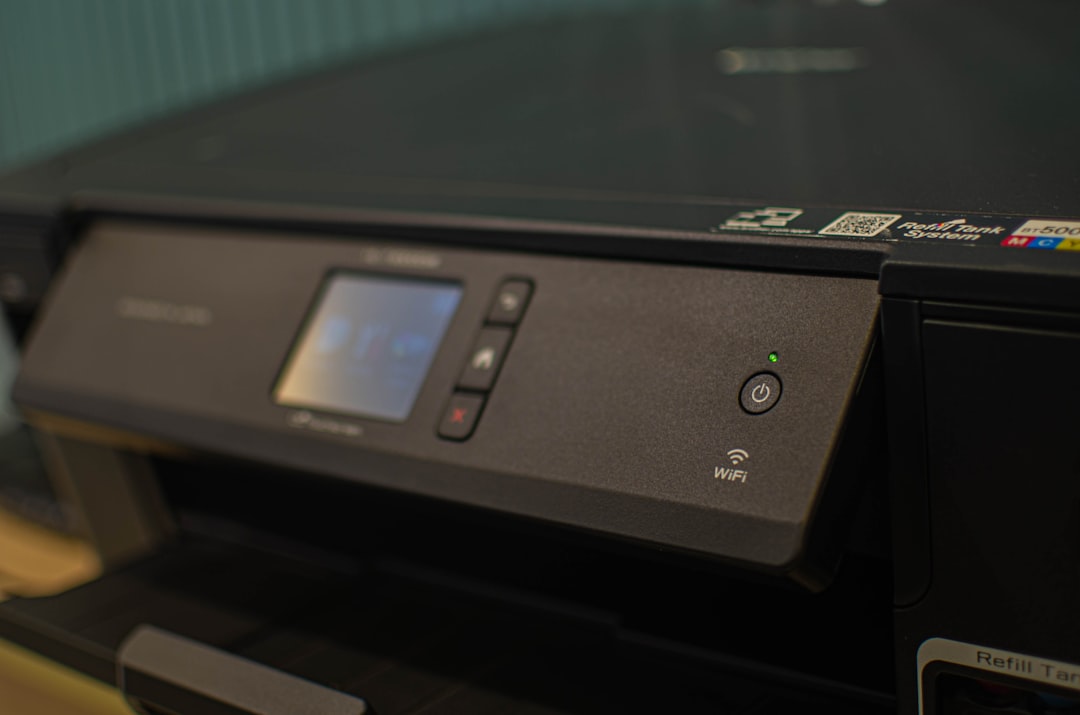
This article provides a step-by-step guide to troubleshooting a printer that is reporting an ink cartridge as missing. You are experiencing a common frustration, one that can halt your productivity in its tracks. That blinking light on your printer, often accompanied by an ominous message on your computer screen, is a universal signal of distress for any document creator. Let’s demystify this predicament and get your printer back to its printing state.
The “ink cartridge missing” error is your printer’s way of informing you that it cannot detect the presence of an ink cartridge it expects to find. This doesn’t always mean the cartridge is physically absent; it can indicate a communication breakdown between the cartridge and the printer’s internal sensors or electronics. Think of it as a conversation that has gone silent. The printer is calling out for the ink cartridge, but the line is dead.
Common Misconceptions
One of the most prevalent misconceptions is that this error solely means the cartridge is not installed. While this is a potential cause, it’s far from the only one. Many users immediately jump to buying a new cartridge, only to find the problem persists. Understanding the nuances of this error can save you time and money.
How Printers Detect Ink Cartridges
Printers utilize a variety of methods to confirm ink cartridge presence. Most commonly, they rely on:
- Electrical Contacts: Small metal contacts on both the printer’s carriage and the ink cartridge must make firm contact. These contacts facilitate communication and power transfer. If these contacts are dirty, damaged, or misaligned, the signal is lost.
- Chip Readers: Modern ink cartridges often have a small chip embedded in them. This chip stores information about the cartridge, such as its type, ink level, and sometimes even its authenticity. The printer has a reader that scans this chip.
- Physical Sensors: In some cases, albeit less common for basic detection, physical sensors might be present to confirm the cartridge is seated correctly within its bay.
The Impact of Software and Firmware
It’s crucial to remember that software and firmware play a significant role in how your printer interprets hardware signals. Outdated or corrupted printer drivers, or firmware bugs, can sometimes create phantom errors, leading the printer to believe a cartridge is missing when it is, in fact, perfectly installed and functional.
If you’ve ever encountered the frustrating message “ink cartridge missing” on your printer, you might find it helpful to explore related articles that delve into common printer issues and their solutions. One such article can be found at this link, which provides insights into troubleshooting printer problems, including reasons why your printer may not recognize an installed ink cartridge. Understanding these issues can save you time and help you get your printer back in working order.
Initial Checks: The Obvious First Steps
Before diving into more complex solutions, it’s essential to perform a thorough review of the most straightforward possibilities. These initial checks are akin to ensuring all the wires are plugged in before assuming the appliance is broken.
Verifying Cartridge Installation
This seems almost insultingly simple, but it’s the most common culprit. You need to ensure the ink cartridge is:
- Correctly Seated: Open your printer’s cover and carefully examine the installed cartridge. Does it sit flush within its designated slot? Is it pushed in firmly until it clicks or locks into place? Sometimes, a cartridge may feel like it’s in, but a slight misalignment can prevent proper contact.
- The Right Cartridge: Double-check that you have installed the correct ink cartridge model for your specific printer. Using incompatible cartridges is a surefire way to trigger error messages. Consult your printer’s manual or the manufacturer’s website to confirm the correct part numbers.
- Not Obstructed: Ensure no plastic packaging, clips, or protective films were left on the cartridge. Manufacturers often install these for shipping, and forgetting to remove them is a frequent oversight.
Checking for Visible Damage
Take a close look at both the cartridge and the printer’s cartridge bay.
- Cartridge: Inspect the cartridge for any cracks, bends, or other physical damage. A damaged cartridge may not be able to make proper contact or its internal components might be compromised.
- Printer Bay: Look inside the printer’s carriage assembly where the cartridge sits. Are there any bent pins or debris? Even a tiny piece of paper or a stray staple can prevent the electrical contacts from connecting.
Restarting Your Printer and Computer
A simple power cycle can resolve many temporary glitches.
- Printer Restart: Turn off your printer, unplug it from the power source, and wait for at least 60 seconds. This allows any residual power to dissipate and the printer’s internal memory to reset. Then, plug it back in and turn it on.
- Computer Restart: While the printer is restarting, reboot your computer as well. This ensures that the printer driver software on your computer is also reloaded fresh.
Investigating Cartridge Contacts
The electrical contacts are the silent communicators between the ink cartridge and the printer. If these pathways are blocked or corroded, communication ceases, and the printer presumes the cartridge is missing.
Cleaning the Cartridge Contacts
This is a critical step and requires a gentle touch.
- Materials: You will need a lint-free cloth (like a microfiber cloth used for cleaning eyeglasses) and a small amount of distilled water or isopropyl alcohol (70% or higher). Avoid using paper towels, as they can leave behind lint.
- Procedure:
- Carefully remove the suspect ink cartridge.
- Locate the small gold or copper-colored electrical contacts on the cartridge itself.
- Lightly dampen the lint-free cloth with distilled water or isopropyl alcohol. Do not soak it.
- Gently wipe each contact on the cartridge. The goal is to remove any residue, dust, or ink buildup.
- Allow the contacts to air dry completely before reinserting the cartridge.
Cleaning the Printer Contacts
The printer’s side of the connection also needs attention.
- Locating Contacts: Once the cartridge is removed, you’ll see corresponding contacts inside the printer’s carriage. These might be small metal prongs or pads.
- Cleaning Method: Use the same method as described for cleaning cartridge contacts. Gently wipe each contact point inside the printer with a lightly dampened lint-free cloth. Be extremely careful not to bend or damage these delicate components.
- Drying: Ensure the printer contacts are thoroughly dry before reinserting the cartridge.
Checking for Bent or Damaged Contacts
When cleaning, pay close attention to the condition of the contacts.
- Prongs: If the contacts are small prongs (often seen in inkjet printers), check if any are bent out of shape or are missing entirely. A bent prong may not make contact with the cartridge.
- Pads: If they are flat pads, ensure they are smooth and free from nicks or deep scratches.
- Correction (with extreme caution): If a prong is slightly bent, you might be able to carefully straighten it using small tweezers. However, this is risky and can easily lead to breakage. If you’re not confident, it’s best to seek professional help.
Reinstalling and Reseating the Cartridge

The act of reinstallation is more than just putting the cartridge back. It’s about ensuring a firm and proper connection.
The “Click” or Lock Mechanism
Many ink cartridges are designed to click into place. This audible or tactile confirmation signifies that the cartridge is fully engaged and its contacts are aligned.
- Listen and Feel: When you reinsert the cartridge, listen for a distinct “click” or feel a firm locking sensation. If it slides in without any resistance or satisfying engagement, it’s likely not seated correctly.
- Force vs. Engagement: Do not force the cartridge. If it’s not going in smoothly, something is likely misaligned. Remove it and try again, ensuring it’s oriented correctly.
Sequential Reinstallation
If you have multiple ink cartridges, try reinserting them one by one.
- Isolate the Issue: Remove all cartridges. Then, install just one, close the printer cover, and see if the error message disappears or changes. If it does, that first cartridge is likely the culprit.
- Systematic Approach: If the error persists, install another cartridge, leaving the previous one in, and repeat the process. This systematic approach helps pinpoint which cartridge, if any, is causing the problem.
Testing with a Different Cartridge
If available, try installing a different, known-good ink cartridge.
- New vs. Re-manufactured: If you are using a re-manufactured or third-party cartridge, try a genuine manufacturer’s cartridge if possible. Sometimes, compatibility issues can arise with non-OEM cartridges.
- Brand New: If you suspect your current cartridge is faulty, a brand-new, sealed cartridge is the best way to test this theory. If the new cartridge is recognized, then the old one was indeed the problem.
If you’ve ever encountered the frustrating message of “ink cartridge missing” on your printer, you might find it helpful to explore potential solutions and insights. A related article that delves into common printer issues and their resolutions can be found at this link. Understanding the reasons behind such errors can save you time and help you get back to printing without hassle.
Software and Driver Troubleshooting
| Reason | Description | Possible Solution | Impact on Printing |
|---|---|---|---|
| Incorrect Cartridge Installation | Ink cartridge is not properly seated in the printer slot. | Remove and reinstall the cartridge ensuring it clicks into place. | Printer may not recognize the cartridge, halting printing. |
| Empty or Expired Cartridge | Cartridge is out of ink or past its expiration date. | Replace with a new, compatible cartridge. | Printer may refuse to print or show error messages. |
| Dirty or Damaged Cartridge Contacts | Electrical contacts on cartridge or printer are dirty or damaged. | Clean contacts gently with a lint-free cloth and isopropyl alcohol. | Printer cannot detect cartridge properly. |
| Non-Genuine or Incompatible Cartridge | Using third-party or incompatible cartridges not recognized by printer. | Use manufacturer-approved cartridges or update printer firmware. | Printer may block printing or show warnings. |
| Firmware or Software Issues | Printer firmware or driver bugs causing false cartridge errors. | Update printer firmware and drivers to latest versions. | False error messages may prevent printing. |
| Protective Tape Not Removed | Protective tape on new cartridge still covering contacts or nozzles. | Remove all protective tape before installation. | Cartridge not detected or ink flow blocked. |
| Cartridge Slot or Sensor Malfunction | Hardware issues with printer cartridge slot or sensor. | Contact support or service technician for repair. | Printer unable to detect cartridge regardless of condition. |
The digital realm of your printer’s operation is as crucial as its physical components. Software glitches or outdated drivers can be the silent saboteurs of your printing endeavors.
Updating Printer Drivers
Outdated or corrupted printer drivers are a common source of hardware misinterpretation.
- Locate Drivers: Visit your printer manufacturer’s official website. Navigate to the support or downloads section.
- Identify Your Model: Input your printer’s exact model number to find the correct drivers.
- Download and Install: Download the latest drivers for your operating system. Follow the on-screen instructions to uninstall existing drivers and install the new ones. A system restart is often required after driver installation.
Printer Firmware Updates
Firmware is the embedded software that controls your printer’s basic functions.
- Check Manufacturer Website: Similar to drivers, manufacturers release firmware updates to fix bugs and improve performance. Check your manufacturer’s support page for any available firmware for your printer model.
- Update Process: Follow the provided instructions carefully. Firmware updates can sometimes take several minutes and should not be interrupted. Power interruptions during a firmware update can permanently damage your printer.
Resetting the Printer’s Utility/Software
Your printer often comes with dedicated software that monitors ink levels and printer status.
- Access Settings: Open your printer’s utility software on your computer. Look for options related to “Printer Status,” “Ink Levels,” or “Maintenance.”
- Refresh or Re-initialize: Some utilities offer a “Refresh” or “Re-initialize” option. This can sometimes force the software to re-read the printer’s status. Consult your printer’s manual for specific instructions.
Uninstalling and Reinstalling the Printer
A complete removal and reinstallation can offer a fresh start.
- Control Panel/Settings: On Windows, go to “Settings” > “Devices” > “Printers & Scanners.” On macOS, go to “System Preferences” > “Printers & Scanners.”
- Remove Printer: Select your printer and choose the option to “Remove device” or “Delete printer.”
- Reinstall: Disconnect your printer from the computer. Download the latest drivers from the manufacturer’s website and run the installer. Follow the prompts to reconnect your printer when instructed.
Advanced Troubleshooting and When to Seek Help
When basic and intermediate steps haven’t resolved the issue, it’s time to consider more in-depth solutions or to realize that professional intervention might be necessary.
Checking Cartridge Chip Resetters (Use with Caution)
Some third-party cartridges or dedicated devices claim to reset the ink cartridge’s chip, tricking the printer into thinking it’s a new, full cartridge.
- Manufacturer Stance: Be aware that using such devices may void your printer’s warranty.
- Effectiveness: Their effectiveness varies greatly depending on the cartridge and printer model.
- If You Choose To: If you decide to explore this option, research specific tools for your cartridge model and follow instructions meticulously, as improper use can damage the chip.
Inspecting for Internal Obstructions
Beyond the cartridge bay, other internal components could be causing issues.
- Paper Jams: Residual pieces of paper from a past jam can lodge themselves in unexpected places, interfering with the print head’s movement or sensor readings.
- Foreign Objects: Small objects, like staples or paper clips, can find their way into the printer’s mechanism.
- Visual Inspection: With the printer unplugged and powered off, use a flashlight to carefully peer into any accessible internal areas. Be extremely cautious not to touch any delicate parts, especially the print head itself.
Contacting Manufacturer Support
If you’ve exhausted all troubleshooting steps, it’s time to leverage the expertise of the people who built your printer.
- Gather Information: Before contacting support, have your printer’s model number, serial number, and the exact error message ready.
- Warranty Status: Check if your printer is still under warranty.
- Troubleshooting History: Be prepared to explain all the steps you’ve already taken. This will save time and help them guide you more effectively.
Considering Professional Repair or Replacement
In some cases, the printer itself may have an internal hardware failure.
- Cost-Benefit Analysis: For older or less expensive printers, the cost of professional repair might outweigh the price of a new unit.
- Diagnosis: A repair technician can diagnose whether the issue is with the printer’s main board, sensor array, or another internal component that cannot be user-serviced.
- Replacement: If repair is not feasible or economical, it may be time to consider purchasing a new printer.
By systematically working through these troubleshooting steps, you can effectively diagnose and resolve the “ink cartridge missing” error, restoring your printer to its full functionality. Remember patience and a methodical approach are your greatest allies in this battle against printing adversity.
FAQs
Why does my printer say ink cartridge missing?
This message usually appears when the printer cannot detect the ink cartridge. It may be due to improper installation, dirty or damaged contacts, or using incompatible or empty cartridges.
How can I fix the ink cartridge missing error?
Try removing and reinstalling the cartridge to ensure it is seated properly. Clean the cartridge contacts gently with a lint-free cloth. Also, check if the cartridge is compatible with your printer model and replace it if empty or defective.
Can using third-party ink cartridges cause this error?
Yes, some printers may not recognize third-party or refilled cartridges, leading to a missing cartridge error. Using manufacturer-approved cartridges can help avoid this issue.
Is it possible that the printer’s firmware causes the missing cartridge message?
Sometimes, outdated or corrupted printer firmware can cause detection problems. Updating the printer’s firmware to the latest version may resolve the issue.
What should I do if the printer still says ink cartridge missing after troubleshooting?
If the problem persists, try resetting the printer, checking for hardware issues, or contacting the printer manufacturer’s support for further assistance. In some cases, the printer’s cartridge sensor may be faulty and require professional repair.